Process Overview
This guide provides a concise explanation of the connections between various modules in DeepExtension. It answers a key question: What do I need to prepare before starting training, performing inference, or conducting an assessment?
How to Interpret the Diagram Below
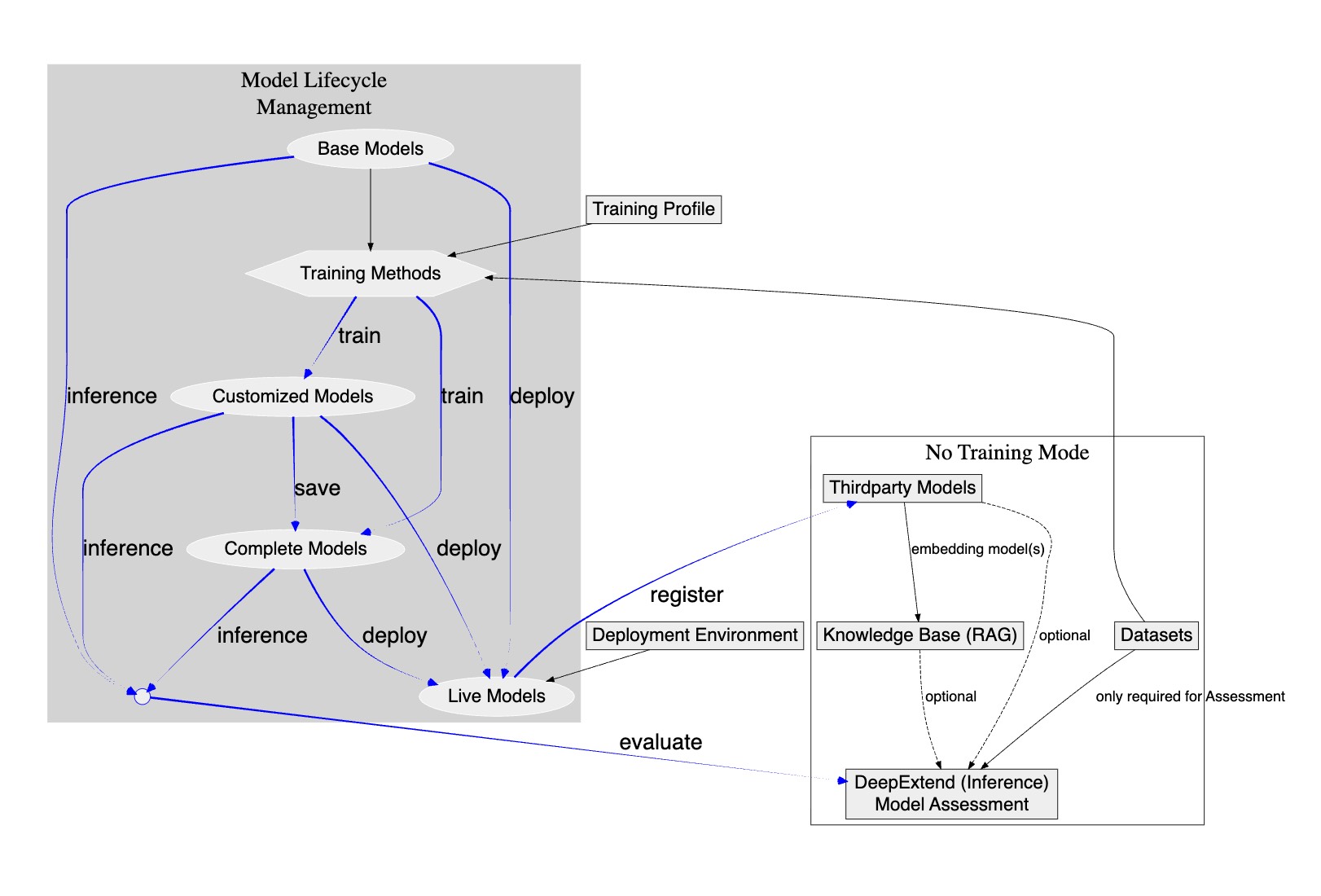
The arrows represent the following:
- Black Solid Arrow: Indicates a mandatory prerequisite. The preceding step must be completed before the subsequent step can begin.
- Black Dashed Arrow: Indicates an optional connection. This step is helpful but not strictly required.
- Blue Arrow: Indicates a process that generates a new model state (e.g., Training or Saving). These represent part of the model lifecycle rather than strict dependencies.
How to Start Your First Model Training
You will need:
- A Base Model (see Base Models)
- A Dataset (see Dataset Management)
The system comes with several built-in training methods ready for use.
➡️ Once everything is prepared, please refer to the tutorial: Quick Start: Run Your First Training
How to Start Prompt Inference (Trying out prompts with a model)
To perform prompt inference using DeepExtend, you need a model. Possible sources include:
- A newly trained model
- A saved Complete Model from a previous training session
- A Third-party Model
Attaching a Knowledge Base (RAG) is optional. Refer to DeepText or DeepImage and RAG.
How to Start Model Evaluation
Use the Model Assessment module to compare two models or test the output quality of a model.
You need to prepare:
- One or more models (trained models or third-party models)
- A dataset (used to generate evaluation questions)
For details, see Model Assessment
What if I installed in "Training-Free Mode"?
Some users may have installed DeepExtension in Training-Free Mode. This is suitable for scenarios such as:
- RAG-based applications
- Building knowledge bases
- Testing third-party models
In this case, you can only use the processes covered in the right-hand section of the diagram. (You cannot run training, save models, or deploy models.)
For a detailed explanation, please refer to the Installation Guide
Model Lifecycle Management
If you have installed the full version, you can use the Model Lifecycle Management feature to manage base models and customized models throughout their entire lifecycle.
Lifecycle Path Overview
The base model supports the following six main lifecycle paths:
- Base Model → Customized Model
- Base Model → Customized Model → Live Model
- Base Model → Customized Model → Live Model
- Base Model → Customized Model → Complete Model → Live Model
- Base Model → Complete Model
- Base Model → Complete Model → Live Model
Key Operations Explanation
-
Train Train a specific base model using a designated dataset to generate a corresponding Customized Model.
-
Assess Use the DeepExtend tool or the Model Assessment function to perform real-time or batch evaluation of a Customized Model.
-
Save Convert an assessed Customized Model into an independent, reusable Complete Model.
-
Deploy Deploy a Complete Model as an Online Model available for production inference.
-
Register Register a deployed model as a reusable resource within the system, making it accessible similarly to a third-party model.
This flowchart helps you quickly understand your current stage and determine what to do next.